
Ask a digital artist whether touch controls or shortcut keys are faster, and you will probably get very different answers.
Some people barely look at their keyboard while they work. They have memorized a small set of shortcuts and can switch tools, undo strokes, zoom, and move around the canvas almost automatically.
Others would rather keep their hands on the display. Two fingers on the canvas, a quick pinch, a small twist, and the workspace moves with them.
So which one is actually faster?
The slightly unsatisfying answer is: it depends on what you are trying to do.
Touch and shortcut keys are not really competing solutions to the same problem. They overlap in a few places, but they are better suited to different parts of a creative workflow.
And once you look at them that way, the comparison becomes much more useful.
Touch Is Good at Moving the Canvas
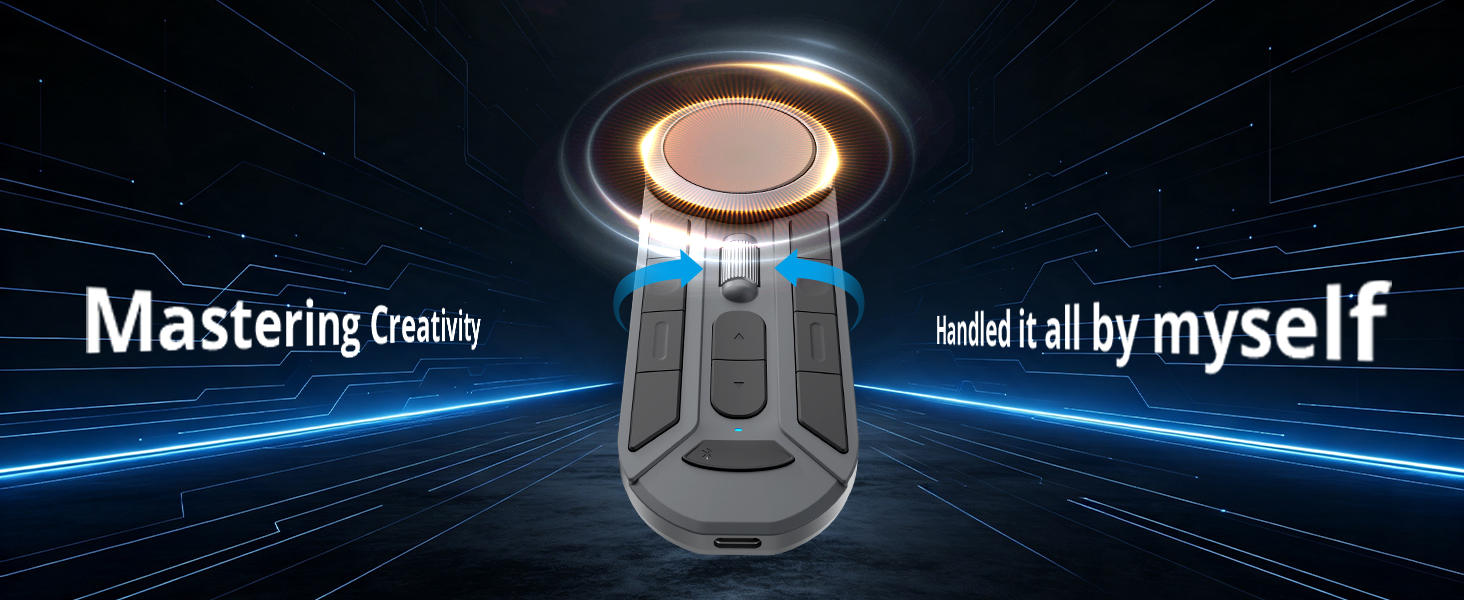 The clearest advantage of touch is navigation.
In Photoshop, supported touch gestures can be used to pan, zoom, and rotate the canvas. Adobe's own documentation describes two-finger gestures for moving the canvas, changing its scale, and rotating the view.
Clip Studio Paint offers a similar approach. On compatible touch devices, artists can use two fingers to move the canvas, pinch to zoom, and rotate the canvas with touch gestures.
That sounds simple, but these are exactly the actions that happen constantly during drawing.
Imagine you are working on a character illustration.
You zoom in to refine the eyes.
You move across to the other side of the face.
You rotate the canvas slightly to make a line more comfortable.
Then you zoom back out to check the whole composition.
Touch lets those movements happen directly on the workspace.
There is no need to remember another key combination. There is no need to move your hand to a keyboard just to change the view.
It can feel less like operating software and more like moving a physical sheet of paper around.
Shortcut Keys Are Better at Commands
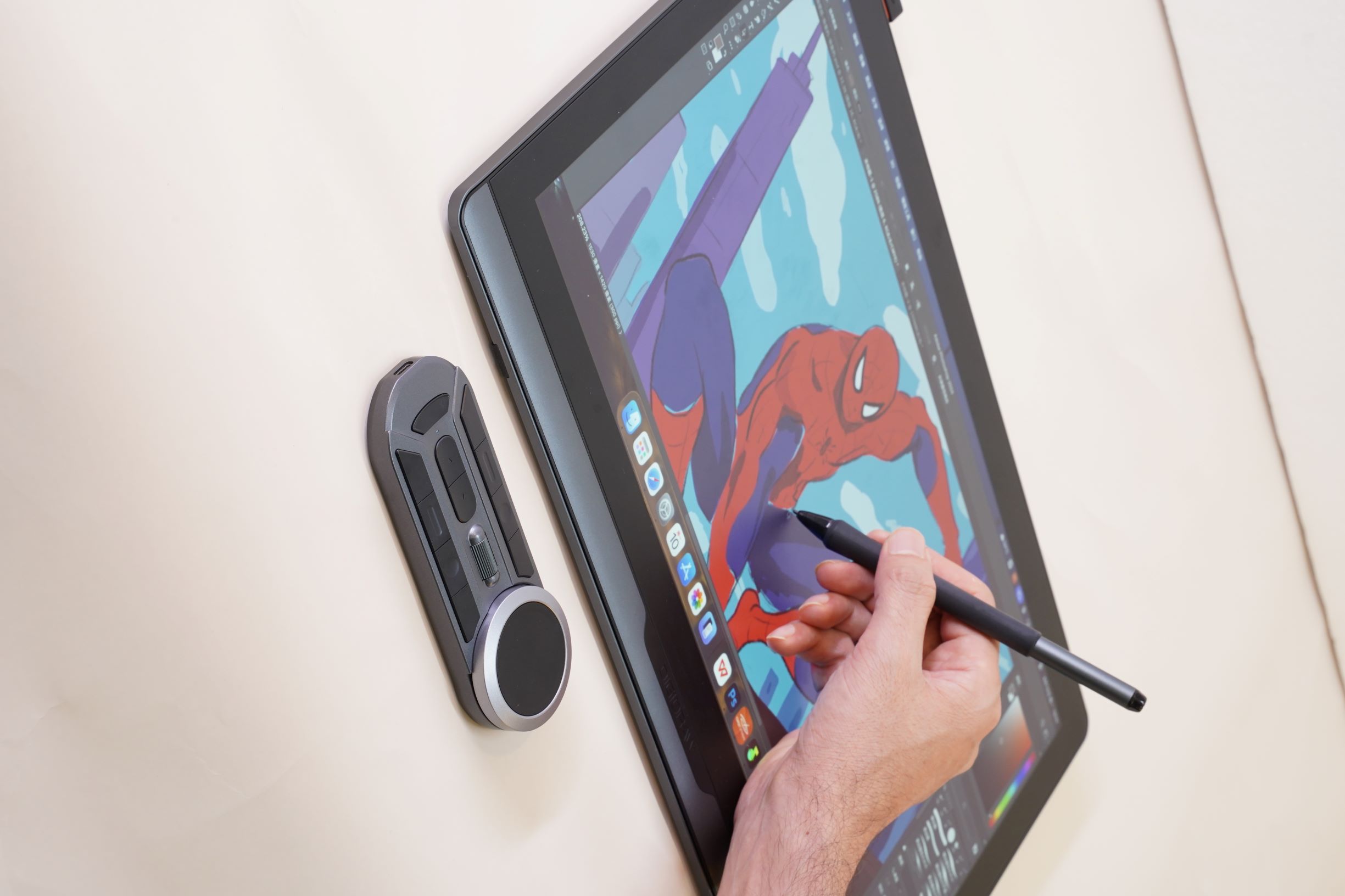 Keyboard shortcuts have a different strength.
They are extremely good when the action you want is a command, rather than a movement.
Undo is an obvious example.
So are actions such as switching tools, changing certain brush settings, creating a new layer, saving, or triggering application-specific commands.
Clip Studio Paint, for example, provides configurable shortcut keys and documents frequently used shortcuts for actions such as undo, canvas movement, zooming, and rotation.
Once an artist has developed muscle memory, this can be very fast.
You do not have to look for a button.
You do not have to move your eyes away from the artwork.
You simply press the key combination you already know.
That is one reason experienced artists can be surprisingly attached to their keyboards even when they are working on a pen display. A shortcut that has become automatic can be faster than almost any alternative.
Where Touch Starts to Pull Ahead
The advantage of touch becomes more obvious when you are navigating continuously.
This happens a lot in detailed digital painting.
A brushstroke might take half a second.
Moving the canvas, changing the zoom level, and adjusting the viewing angle may happen dozens or hundreds of times during the same session.
Touch is particularly convenient here because the interaction happens directly where your attention already is.
You do not really think:
“I need to activate the canvas navigation function.”
You just move the canvas.
That distinction is subtle, but it affects the feeling of the entire workflow.
Adobe even notes situations where touch can be particularly convenient on larger displays, where physically rotating the screen is impractical.
That is worth considering when comparing a compact pen display with a large one.
As the working area gets larger, direct navigation can become more useful.
And This Is Where Shortcut Keys Still Win
There are plenty of situations where keyboard shortcuts are the more efficient choice.
Suppose you are painting and need to switch between brush and eraser repeatedly.
Touch is not really the obvious solution.
You would have to interact with the screen or another interface element, while a shortcut can change the tool immediately.
The same goes for commands you use dozens of times during a project.
This is why professional workflows often develop their own rhythm around shortcuts. Once the key combinations are learned, they require very little conscious attention.
There is also the issue of consistency.
A keyboard shortcut usually means one deliberate input and one predictable result.
Touch gestures can feel more natural, but they depend on gesture recognition, application support, and the particular touch implementation of the device.
And not every creative application treats touch in exactly the same way.
There Is One Problem With Touch: It Can Get in the Way
Touch sounds almost perfect until you actually use it with your hand resting on a display.
Your palm is touching the screen.
Your fingers move slightly.
You are drawing with the pen.
Now the software has to understand which input is intentional and which is not.
That is why touch-enabled creative devices need sensible palm rejection and touch controls.
This is not just a theoretical concern. Clip Studio Paint, for example, has dedicated settings for dealing with accidental touches, including options for separating finger and pen input.
So when evaluating a touch-enabled pen display, “supports touch” is not quite enough information.
The more useful questions are:
How does touch behave while the pen is in use?
How reliably does the software distinguish gestures from accidental contact?
Can touch be disabled when you do not need it?
Does the application you actually use support the gestures properly?
Those details matter more than the feature simply being listed on the box.
The Keyboard Has a Similar Weakness
Shortcuts are not perfect either.
The obvious problem is that there are a lot of them.
Photoshop, Clip Studio Paint, and other creative applications can have extensive shortcut systems. You can learn the most important ones fairly quickly, but remembering every combination is another matter.
There is also a physical distance involved.
Your artwork is on the display.
Your keyboard is somewhere else.
For some people, that distance is barely noticeable. For others, especially during long drawing sessions, constantly moving between the screen and keyboard becomes part of the friction of the workflow.
Touch removes that separation for certain kinds of interactions.
So Which One Is Actually Faster?
A better question is:
Faster for what?
For zooming, panning, and rotating the canvas, touch can be extremely convenient because those actions happen directly on the workspace. Photoshop and Clip Studio Paint both support touch-based canvas navigation on compatible devices.
For tool switching, commands, and repetitive application functions, keyboard shortcuts can be faster once they become muscle memory.
For moving between different kinds of actions, using both can make more sense than choosing one.
That last point is probably the most important.
Why Using Both Can Be More Efficient
There is a tendency to frame this as:
Touch vs shortcut keys.
In practice, many workflows work better as:
Touch + pen + shortcuts.
Use the pen for drawing.
Use touch for moving around the canvas.
Use keyboard shortcuts for commands.
Or replace some of those shortcuts with a dedicated shortcut controller.
The result is not necessarily faster because one technology is inherently better.
It is faster because each input method is being used where it makes the most sense.
Clip Studio Paint itself reflects this kind of mixed-input workflow. Its documentation covers both touch gestures and shortcut-based canvas operations, while shortcut assignments can be customized for many commands.
That is probably closer to how most artists actually work.
What About a Shortcut Remote?
This is where things get more interesting for pen displays.
A shortcut controller can occupy the space between touch and a traditional keyboard.
You can keep frequently used commands physically close to the display without placing a full keyboard beside your drawing area.
That can be especially useful for artists who prefer tactile buttons or a dial over keyboard combinations.
It also means touch does not have to replace physical shortcuts.
The two can complement each other.
For example:
Touch: zoom, pan, rotate
Pen: draw, paint, select
Shortcut controller: undo, brush-related commands, frequently used functions
That kind of division can make more sense than trying to make one input method handle everything.
Where This Matters on a Large Pen Display
The difference becomes particularly interesting on larger professional displays.
Take the DIGIDRAW Turing Pro 19 D1901T as an example.
The display is designed around a 19-inch-class workspace, with True 4K resolution and touch support. DIGIDRAW also includes its K30 portable shortcut controller with the product, giving users a physical shortcut option alongside the pen and touch interface.
That combination reflects a fairly practical idea:
you do not have to choose one input method.
On a large display, touch can handle the physical movement of the canvas while the K30 can take over some of the repetitive commands that would otherwise require a keyboard.
The D1901T's display is also specified with 99.8% sRGB, 96% AdobeRGB and 98% DCI-P3 coverage, with a stated Delta E below 1.3, so touch is only one part of the overall workflow rather than the product's entire value proposition.
For someone doing illustration, design, concept work, or other visually demanding creative tasks, the more interesting question is whether the different controls work together naturally.
That is ultimately what a professional setup should be doing.
Not giving you more buttons.
Not giving you more gestures.
Just giving you fewer reasons to stop what you are doing.
The Best Setup May Be the One You Forget About
There is a funny thing about good creative hardware.
When it works well, you stop thinking about the hardware.
You are not thinking:
Should I use the shortcut now?
Should I pinch to zoom?
Where is that button?
You simply draw.
The most useful role for touch is probably not replacing keyboard shortcuts. And keyboard shortcuts are not really a replacement for touch either.
They solve different parts of the same problem: keeping your attention on the artwork.
Touch is especially useful for spatial actions that involve the canvas itself.
Shortcut keys are especially useful for fast, repeatable commands.
And a physical shortcut controller can occupy the middle ground for artists who want tactile access to frequently used functions.
So, which is faster?
For canvas navigation, touch often makes more sense. For repeated commands, shortcut keys usually have the advantage. For a serious digital art workflow, using both may be more practical than choosing one.
That is probably the more useful answer than simply declaring a winner.
0件のコメント